


Parallels Desktop facilitates the simultaneous execution of Windows and Mac applications. Users can select a view that renders Windows applications invisible while retaining their functionality or maintain the familiar Windows interface and controls on their Mac. Whether you need to run Windows programs without Mac counterparts or are transitioning from a PC to a Mac and need to transfer data, Parallels Desktop provides comprehensive support.
Parallels Desktop
Version: 26.2.2-57373 | (Size: 235.9 MB)
Version: 26.1.2-57293 | (Size: 204.8 MB)
SIP On/Off 2-in-1
Parallels Desktop 20
Version: 20.4.1-55996 | (Size: 204.8 MB)
Parallels Desktop 19
Version: 19.4.1 (54985) | (Size: 303.5 MB)
Parallels Toolbox
{New}
Version: 7.1.0.5405 | (Size: 76.3 MB)
Parallels Desktop 18
Version: 18.3.2 (53621) | (Size: 310.0 MB)
Parallels Desktop 17
Size: 244.2 MB | Version: 17.1.4 (51567)
This release includes:
- Parallels Desktop Business Edition v17.1.4.51567
- Parallels Toolbox v5.5.1-4410
How to Crack Parallels Desktop 20
Install Parallels Desktop:
- Download Parallels Desktop
- Sign out of your account
- chmod +x install.sh && chmod +x Launch Parallels.command && sudo ./install.sh
- Double click Launch Parallels.command
You will always need to use this launcher as a workaround to prevent signature errors from occurring. However, if you are a developer with permission to use com.apple.vm.* or are willing to disable System Integrity Protection, there is a better approach available.
Operation not permitted
Enable System Preferences ▸ Privacy & Security ▸ Full Disk Access ▸ Terminal
Codesign error
Ensure xcode command line tools installed. Install it with using the command xcode-select –install.
Check installation with xcode-select -p, which will output /Library/Developer/CommandLineTools or /Applications/Xcode.app/Contents/Developer.
Hosts
You also wan’t to block Parallels Servers.
127.0.0.1 download.parallels.com
127.0.0.1 update.parallels.com
127.0.0.1 desktop.parallels.com
127.0.0.1 download.parallels.com.cdn.cloudflare.net
127.0.0.1 update.parallels.com.cdn.cloudflare.net
127.0.0.1 desktop.parallels.com.cdn.cloudflare.net
127.0.0.1 www.parallels.cn
127.0.0.1 www.parallels.com
127.0.0.1 www.parallels.de
127.0.0.1 www.parallels.es
127.0.0.1 www.parallels.fr
127.0.0.1 www.parallels.nl
127.0.0.1 www.parallels.pt
127.0.0.1 www.parallels.ru
127.0.0.1 www.parallelskorea.com
127.0.0.1 reportus.parallels.com
127.0.0.1 parallels.cn
127.0.0.1 parallels.com
127.0.0.1 parallels.de
127.0.0.1 parallels.es
127.0.0.1 parallels.fr
127.0.0.1 parallels.nl
127.0.0.1 parallels.pt
127.0.0.1 parallels.ru
127.0.0.1 parallelskorea.com
127.0.0.1 pax-manager.myparallels.com
127.0.0.1 myparallels.com
127.0.0.1 my.parallels.com
Parallels Desktop will uncomment these, therefore one needs to lock the hosts file:
sudo chflags uchg /etc/hosts && sudo chflags schg /etc/hosts
Unlock:
sudo chflags nouchg /etc/hosts && sudo chflags noschg /etc/hosts
OS download
You will not be able to download operating systems in the Control Center anymore. Comment these out to get this functionality:
# 127.0.0.1 download.parallels.com
# 127.0.0.1 desktop.parallels.com
# 127.0.0.1 download.parallels.com.cdn.cloudflare.net
# 127.0.0.1 desktop.parallels.com.cdn.cloudflare.net
Here’s the best way to crack Parallels 19 by Ion B:
- Completely close the program after installation.
- (Optional) Go to macOS settings, Privacy, and security, and allow the terminal full access to the file system and apps management.
- Open the Crack folder in the terminal.
- Enter the following command: chmod +x ./Install_Patch.command && sudo ./Install_Patch.command
- Follow the procedure as it’s pupping up in the terminal until it’s done.
Note: Run this before installing.
sudo xattr -rd com.apple.quarantine (Image path)
Note: You need to register & sign in before you block the outgoing connectIons and apply the serial.
After upgrading a Mac to Big Sur, the “Network initialization failed” message appears when starting a virtual machine.
- Shut down the virtual machine and quit Parallels Desktop.
- Open Terminal (Applications > Utilities > Terminal), copy and paste the following command, and press Enter:
sudo rm /Library/Preferences/SystemConfiguration/preferences.plist - When prompted, enter your Mac’s password and press Enter (Terminal doesn’t show the password you type).
- Perform the same for the command below and restart Mac afterward:
sudo rm /Library/Preferences/SystemConfiguration/NetworkInterfaces.plist
Mojave note: failed to install from the DMG-within-the-DMG, and after manually copying the hidden Parallels app to /Applications and making it visible with
chflags nohidden /Applications/Parallels Desktop.app
codesign –sign – –force –deep /Applications/Parallels Desktop.app
Then double-click the Parallels Desktop.app to install.
PS: if you get a detritus error, first execute the following before code-signing:
xattr -cr /Applications/Parallels Desktop.app
Fix the “Parallels is Damaged” error, when is installing, is because it tries to run the app before copying the Parallels Desktop.app to the application folder.
- Open Terminal type( it disables the security to allow install modified/cracked apps):sudo spctl –master-disable
- Enter your password
- Open the dmg downloaded and run the Install as normal
- WHEN appears the error “Parallels is Damaged” just press cancel.
- Open terminal and copy and run this command ( this will copy the Parallels Desktop.app cracked to your local Application Folder, IMPORTANT WAIT 2-5min ):sudo cp -R /Volumes/Parallels Desktop 16.0.0-48916 – Toolbox 4.0.0-3231 by TNT/Parallels Desktop.app /Applications
- Now copy and run this command ( I don’t know why but the .app is copied as a hidden file, so this will fix it ):sudo xattr -d com.apple.FinderInfo /Applications/Parallels Desktop.app
- Finally, run this to enable the security and allows to run the Parallels Desktop.app :sudo spctl –master-enablesudo xattr -rd com.apple.quarantine /Applications/Parallels Desktop.app
- Just run Parallels from Launchpad and enjoy it – you can check version 16.0 in the menu app
- Processor: Any Apple silicon chip
Intel Core i5, Core i7, Core i9, Intel Core M or Xeon processor - Memory: 4 GB of RAM
- Storage: 600 MB for Parallels Desktop application installation
Additional disk space for the guest operating system (at least 16 GB is required for Windows OS) - Graphics: Apple M2, M2 Pro, M2 Max, M2 Ultra, M1, M1 Pro, M1 Max, and M1 Ultra chips
Intel, AMD Radeon, or NVIDIA graphics cards
Operating system:
- macOS Sonoma 14.0 or newer
- macOS Ventura 13.2 or newer
- macOS Monterey 12.6 or newer
- macOS Big Sur 11.7 or newer[1]
- macOS Catalina 10.15.7 or newer[1]
- macOS Mojave 10.14.6 or newer[1]
[1] — The marked OS version is not supported by Parallels Desktop 19, and the product installer will set up an earlier product version; support of guest operating systems can be limited. It is recommended to update macOS if possible.
Supported guest operating systems
Supported guest operating systems (Mac with Apple silicon): Only ARM versions of operating systems are supported.
- Windows 11 Pro and Enterprise editions (recommended)
- Ubuntu Linux 23.04, 22.04, 21.10, 21.04, 20.10, 20.04
- Fedora Workstation 38 and 37
- Red Hat Enterprise Linux 9
- Debian GNU/Linux 11 and 10
- Kali Linux 2023.1, 2022.2, 2022.1, 2021.3
- macOS Monterey 12 (in-app download)
- macOS Ventura 13 (in-app download)
- macOS Sonoma 14 (in-app download)
Supported guest operating systems (Mac with Intel processors): Only x86 versions of operating systems are supported.
- Windows 11 (recommended)
- Windows 10 [1]
- Windows Server 2022
- Windows Server 2019
- Windows Server 2016
Note: To run legacy Windows OS versions (2000, XP, Vista, 7, 8/8.1), download and use Parallels Tools version 18.3.0. Learn more at https://kb.parallels.com/en/129252.
Parallels Desktop for Mac emulates PC hardware, so operating systems that are not present in this list can work as well. You can download the Parallels Desktop trial and install an operating system of your choice. If it doesn’t work and you believe it should be supported, let us know at Parallels Forum.
To learn more about the limitations of running Windows 11 in Parallels Desktop, please visit KB 129497.
Parallels Tools for Linux require X Window System version 1.15-1.20 and Linux Kernel version 3.1-6.4-rc2.
- Powerful Performance: Run business-critical applications without compromise—Microsoft Office, Visual Studio®, Quicken®, and QuickBooks™ for Windows, Access, Project, Autodesk Revit® and Inventor, CorelDRAW, ArcGIS, Visio, QuickBooks™, Internet Explorer, Adobe Photoshop®, and Parallels Desktop Business Edition!
- Lightning Fast: Graphics and resource-hungry Windows applications run effortlessly without slowing down employee’s MacBook®, iMac®, Mac mini®, or Mac Pro®.
- Fits Into Security Standards: Join Windows to Active Directory and enforce corporate policies and guidelines like virtual machines are physical PCs. New smart card reader support expands smart card authentication to Windows and macOS Parallels Desktop Business Edition.
- Protect Data in Windows: Add an additional layer of security by encrypting virtual machines and keeping their configuration password protected.
- Create Expiring Virtual Machines: Create time-bound, encrypted virtual machines that will automatically expire and lock at a defined time. Ensures additional security when corporate data is shared externally.
- Ready for macOS Sonoma 14: Parallels Desktop 19 fully supports macOS Sonoma 14 both as a primary OS on Mac as well as running in a virtual machine, so you can upgrade your Mac computers when the new operating system is available. You will see more details about specific improvements for macOS Sonoma below.
- Integration with Mac: Enables using your Mac’s Touch ID to log into your Windows 10 or Windows 11 virtual machine. Your Windows account credentials are securely stored in macOS Keychain, protected with Touch ID, and available only on this Mac.
- Graphics: Adds support for OpenGL up to version 4.1 in Windows, enabling you to run ArcGIS CityEngine 2023, Vectorworks Vision 2023, VariCAD, and more. This version also improves the performance of ArcGIS Pro software.
- Printing: On macOS Sonoma, Parallels Desktop 19 now uses an Internet Printing Protocol (IPP) for printing from Windows that provides better compatibility with hardware-supported features.
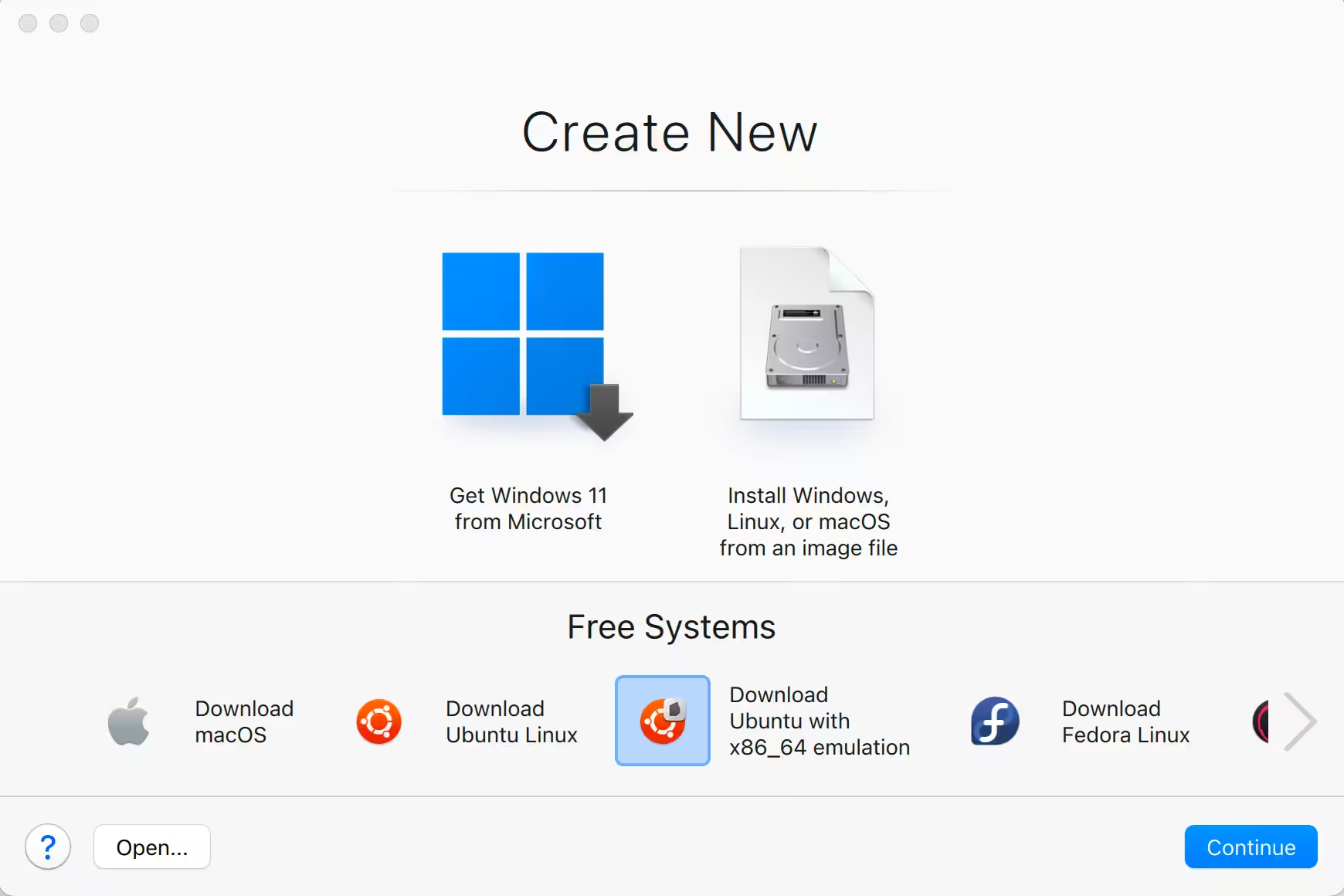
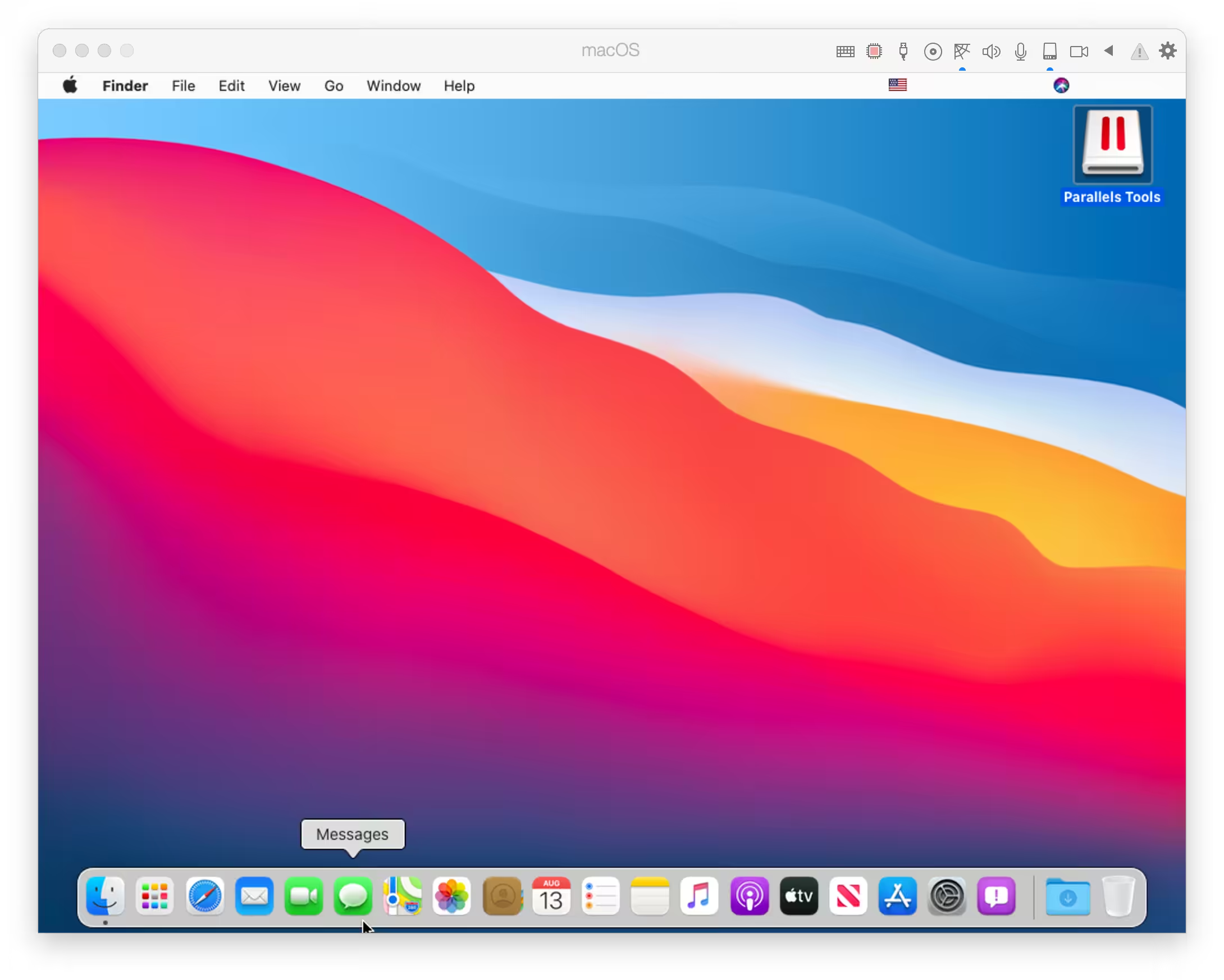
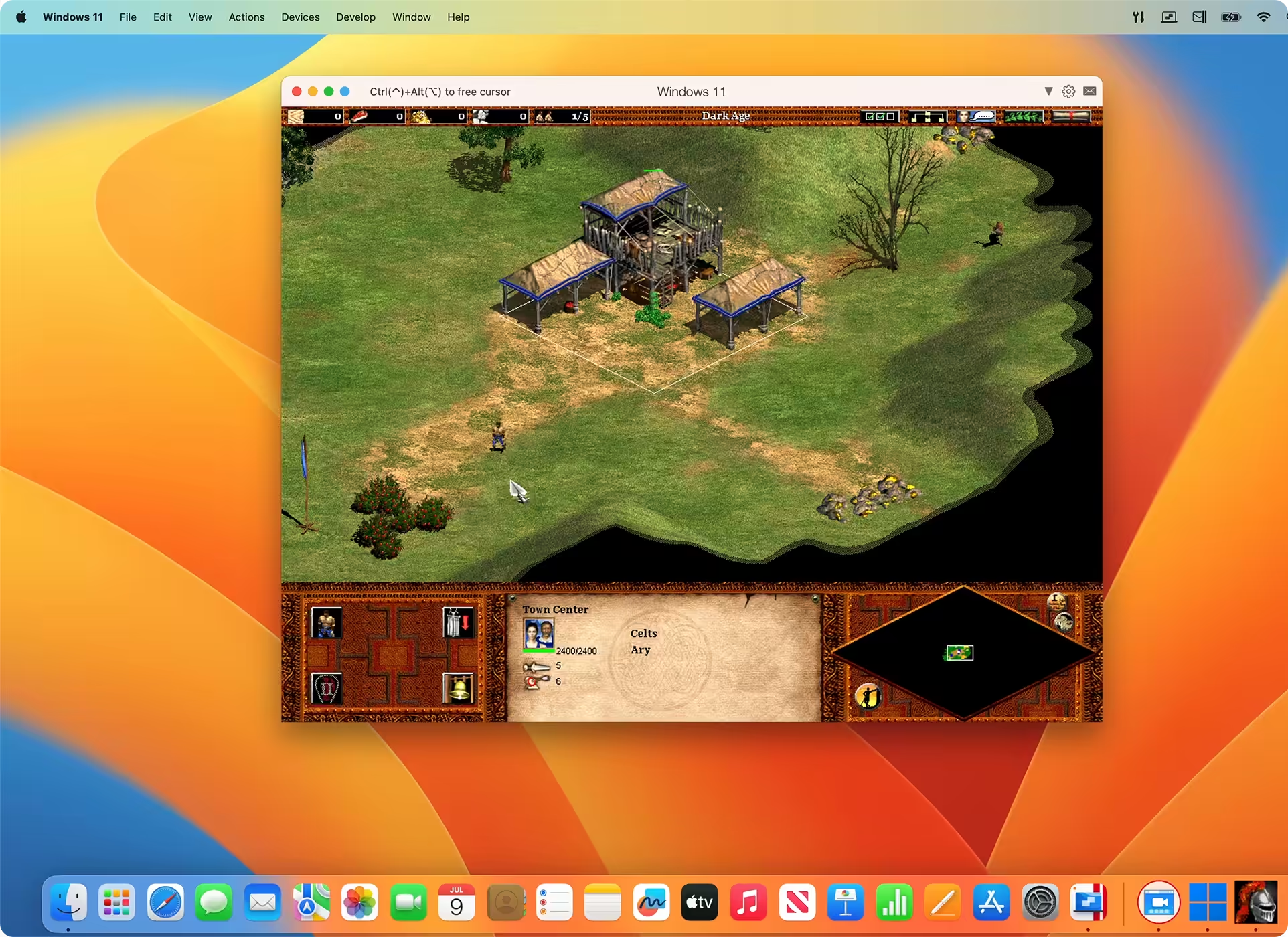
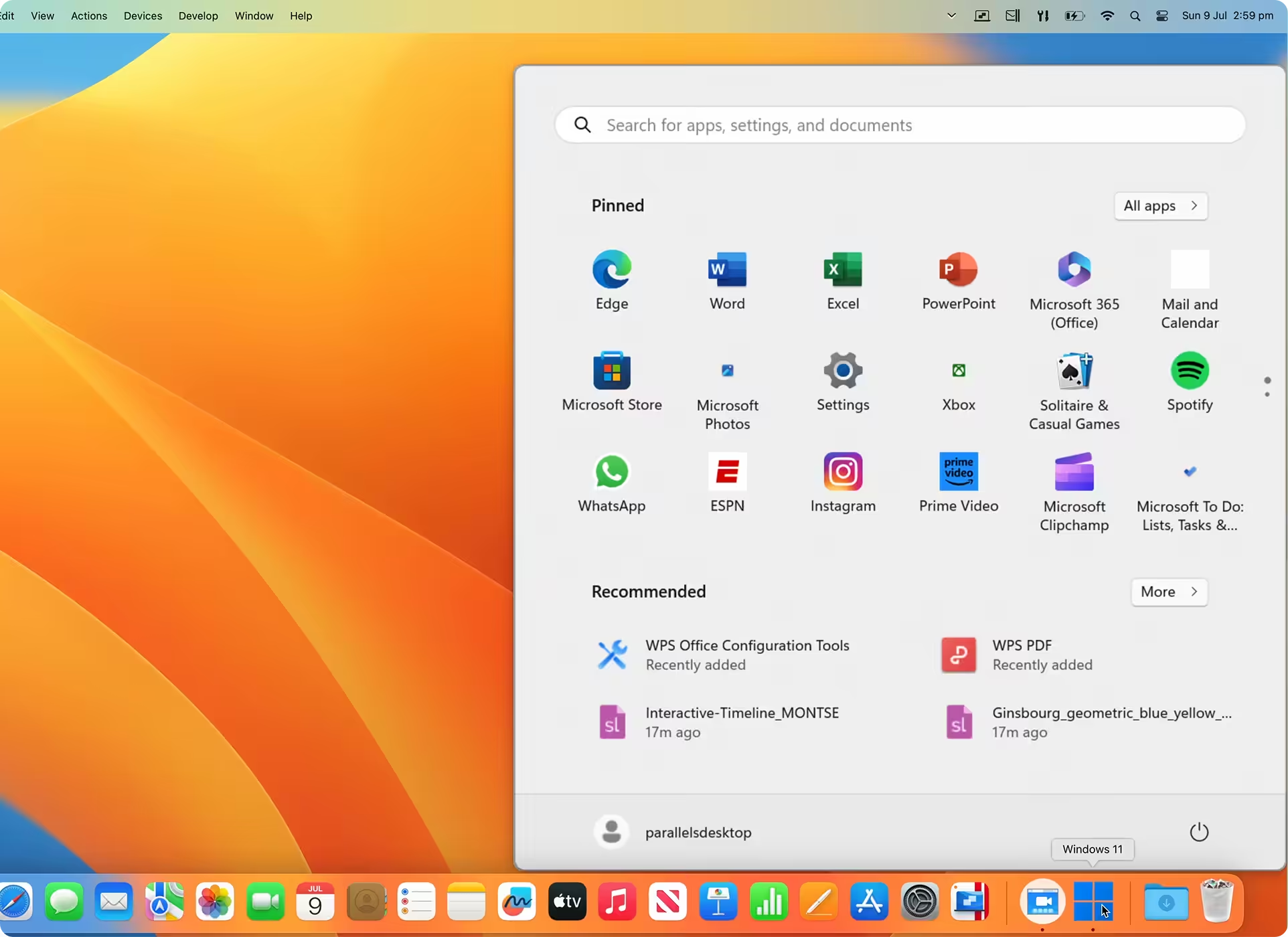
C2 Server
for install
-turn off internet / Wifi
-install “1. ParallelsDesktop-26.1.1-57288”
-open patch you need (if your system have SIP on or off)
after open drag and drop the patch to the app folder which is shown
-open in apps the patch and click install , wait a moment , type your password for install, wait- then press exit in this patch app
-i also have blocked all Parallels accounts in terminal. I dont know if this is still needed 🙂
i patched it using the patch and got the success confirmation in the terminal
For M1 (Sadly just 16.3.2):
https://zeroupload.com/ade15ad7f2a2f183/Parallels_Desktop_for_ARM_16.3.2-50531__HCiSO.dmg
This window pops up periodically and it’s a bit inconvenient. Is there a way to fix this?
Kind regards Palo
Thank you.
save and start parallels
press „Control + O“ and then enter „Return“
After that press the key combination Ctrl + O then press Enter key the changes will be saved, close the terminal window and you can use Parallels Desktop.
I tried “Parallels Desktop 19.2.1” did how its said, but don’t work after activation Tool
(yes I put it in Application and start it from there, SIP is off)
also i find this in web, what I did before
(but I am not sure if needed)
patcher was in Russian but worked super smooth. no errors. after that you need to give the app permission to be started anyway in the security settings on your Mac, then the app starts as a lifetime license without any issues or pop ups… after that I deleted the patcher from my Mac with “app cleaner”
chmod +x ./Install_Patch.command && sudo ./Install_Patch.command
sorry for the silly i think question, but my first mac is an m1, and pd it’s my first attempt to use a cracked program in mac!!!
==== Automatic injection script starts execution ====
Design By QiuChenly
When injecting, please follow the prompts to enter
[🤔] [prl_client_app] – [18.3.1] – [com.parallels.desktop.console]Is it a supported version and does it need to be injected? y/n(Default n) <</dev/null
now all problems are gone
maybe you will have click 2 times to start the VM ( but only once)
find a solution and now it runs
why back to win10?
because Canon is not able to create a working driver for Printer (Can’t print CD Tray) not in win11 and not in OSX Ventura – they have actually drivers for that, but they don’t work – idiots- and hotline tell rubbish and tell me to use dead Canon links (found the software on other places and it don’t works on win11 and osx Ventura). :)))))))
Try this
There might be a few reasons for the error message to show up:
1. prl_disp_service is stuck.
2. You use a non-genuine version of Parallels Desktop.
Worked for me.
No estiendo como se hace ese paso, me podrias explicar mas detalladamente por favor.
Gracias 😉
The older version ParallelsDesktop-18.1.0-53311 still works fine on M1.
i tried that:
Tried in many ways, with no chance of booting after installation.
– For ‘Network Initialization Failed’ error
– Open Terminal
– Type: sudo nano /Library/Preferences/Parallels/network.desktop.xml
– Add: 0
OR
– Change -1 to 0
– Press Ctrl + X to close
– Press Y to save changes
Thanks,
Thanks, Julie
also, install clean windows.
We have to wait for a new method to install Parallels for M1 and then make sure to block connections or you will lose your access to the program.
also, install clean windows.
1. sudo nano /Library/Preferences/Parallels/network.desktop.xml
2. find 1 (value can be -1), and change the value to the 0
3. if you can’t to find this tag, then just create it under root tag here
1. sudo nano /Library/Preferences/Parallels/network.desktop.xml
2. find 1 (value can be -1), and change the value to the 0
3. if you can’t to find this tag, then just create it under root tag here
If I install without internet connected:
How to Disable System Integrity Protection in MacOS: https://codelofi.com/how-to-disable-system-integrity-protection-in-macos/
How can i fix damaged app message on macOS Mojave: https://codelofi.com/how-can-i-fix-damaged-app-message-on-macos-mojave/