


ScreenFocus dims your screens. You don’t have to click any button to dim a screen. It’s dimmed automatically when you move the cursor away. By default, only the side screens are dimmed. Of course, you can change it within the app menu.
- macOS 10.12 or later 64-bit
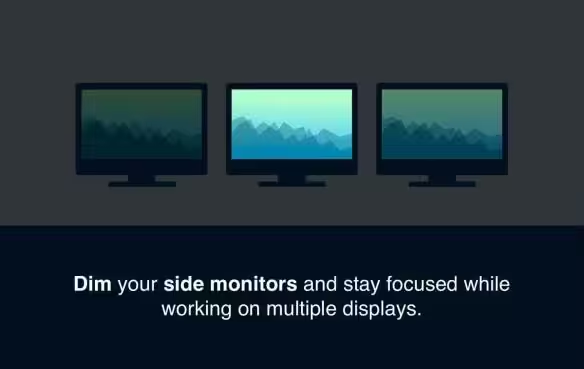
- Stay focused: Don’t let side monitors distract you. ScreenFocus DIMMs any number of screens so that you can focus only on what you are actually working on.
- Brighten up a monitor in no time: Simply move your cursor over the side monitor – the screen will brighten up. When you move the cursor away, the screen will dim again.
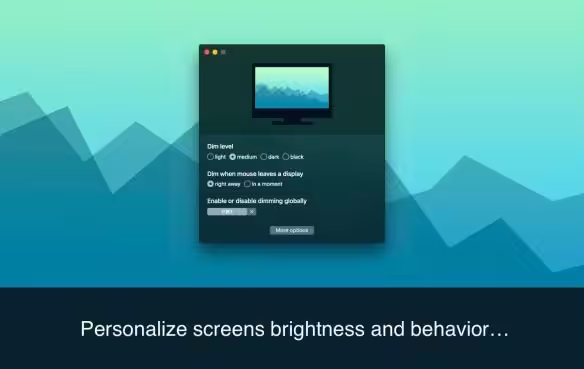
- Variety of settings: We believe ScreenFocus works perfectly as it is. But perfect is not the same for everyone. You can adjust the dim level, the time before a screen is dimmed, and even the fade duration. In the application menu, you can choose if a particular monitor should be dimmed.
- Release notes were unavailable when this listing was updated.
Haxmac © 2026. All Rights Reserved.
How to Disable System Integrity Protection in MacOS: https://codelofi.com/how-to-disable-system-integrity-protection-in-macos/
How can i fix damaged app message on macOS Mojave: https://codelofi.com/how-can-i-fix-damaged-app-message-on-macos-mojave/